Test Results
The Test Results page provides a searchable archive of every test run that has been executed. Each run is stored as a timestamped directory containing a full HTML report.
Navigating to Test Results
Click Test Results in the left sidebar.
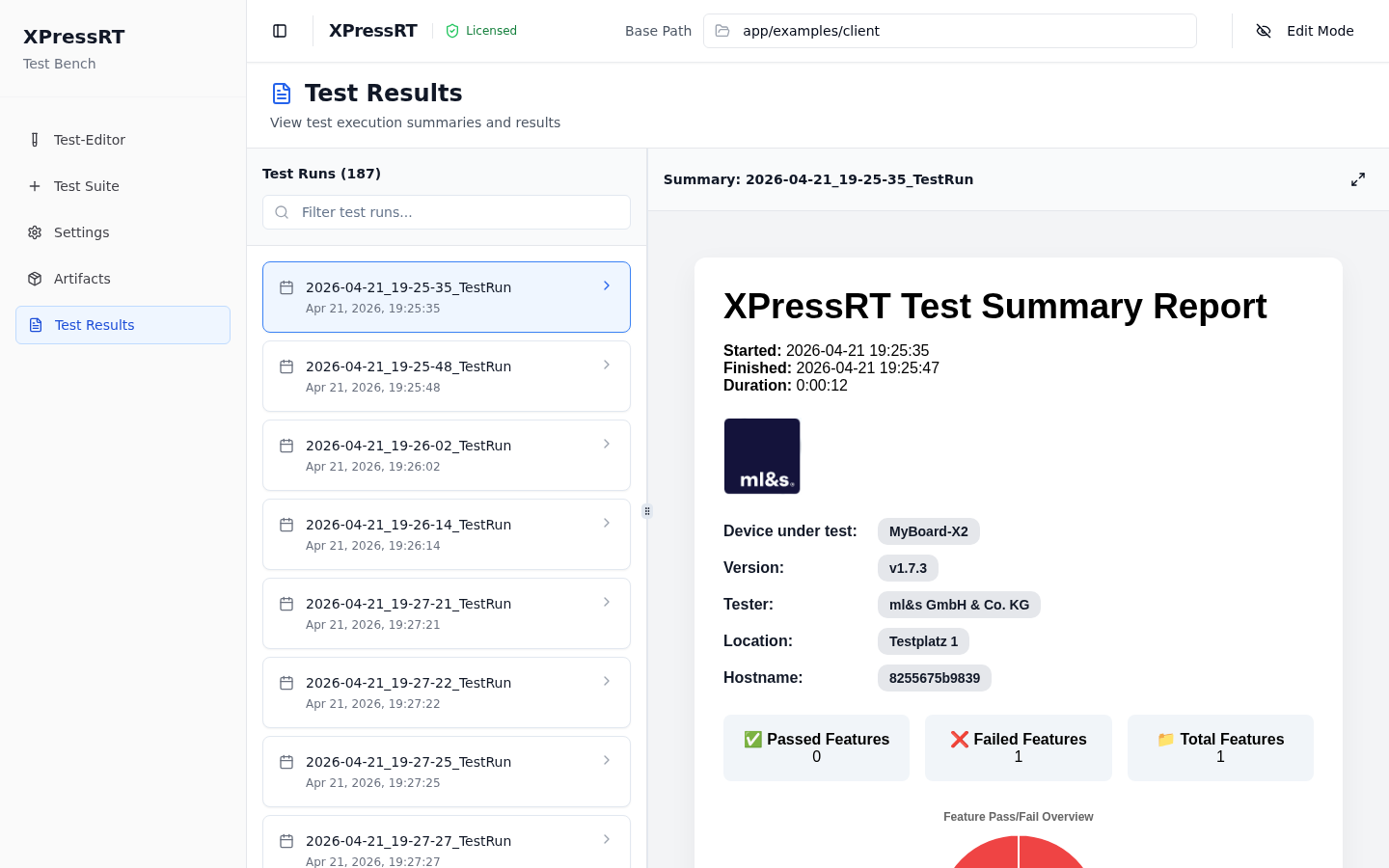
Page Layout
The page is split into two resizable panels:
| Panel | Description |
|---|---|
| Left — Test Runs list | A chronological list of all stored test runs |
| Right — Summary report | An embedded HTML report for the currently selected run |
Drag the divider between the panels to resize them. Use the ⤢ Expand button (top-right of the report panel) to view the report in full-screen mode.
Test Runs List
Each entry in the list shows:
- Run identifier — in the format
YYYY-MM-DD_HH-MM-SS_TestRun - Formatted date and time — displayed in a human-readable form (e.g.
Apr 21, 2026 at 19:25:35)
The list is sorted newest-first. Use the Filter test runs… search box to narrow the list by date or keyword.
The first run in the list is selected automatically when the page loads.
Reading the Summary Report
When you select a run, the right panel renders the XPressRT HTML report for that run. The report includes:
Run Metadata
| Field | Description |
|---|---|
| Started / Finished | Timestamps for the beginning and end of the run |
| Duration | Total elapsed time |
| Device under test | Name of the device being tested (from Settings device_under_test_name) |
| Version | Firmware or hardware version (from Settings device_under_test_version) |
| Tester | Name of the person or organisation running the tests (from Settings tester_name) |
| Location | Test bench or facility name (from Settings test_place_name) |
| Hostname | The machine hostname where the run was executed |
Feature Summary
A high-level summary card showing:
- Passed Features — features where all scenarios passed
- Failed Features — features with one or more failures
- Total Features — total number of features executed
Scenario Details
For each feature, the report lists every scenario with:
- Pass / Fail status
- Step-by-step breakdown
- Error messages for failed steps
- Duration per step and per scenario
For Scenario Outlines, each iteration (parameter row) is listed separately.
Navigating Within a Report
If the report contains links to per-feature detail pages, they are resolved relative to the backend API automatically — click them to drill down into individual feature reports within the same embedded view.
Full-Screen Mode
Click the ⤢ button to expand the report to fill the browser window. Click ⤡ to return to split-panel view. This is useful when reviewing detailed step logs or sharing the screen with a colleague.
Interpreting Status Icons
| Icon | Meaning |
|---|---|
| ✅ Passed | All steps in the scenario completed successfully |
| ❌ Failed | One or more steps failed |
| ⏭ Skipped | The step was not executed (because a prior step aborted the run) |
| ⏳ Pending | The step had not yet started at the time of the report |
Report Storage
Reports are stored on the server at the path configured as the Results Directory (relative to the base path). Each run creates a subfolder named YYYY-MM-DD_HH-MM-SS_TestRun. The XPressRT backend serves these directories through the /api/v1/config/results/ endpoint.
To back up reports, copy the results directory from the Docker volume to a permanent storage location.