Test Suites
A Test Suite is a named, reusable collection of scenarios drawn from one or more features. Instead of running an entire feature file, you cherry-pick exactly the scenarios you need, give the collection a name, and run it as a single job.
Navigating to Test Suites
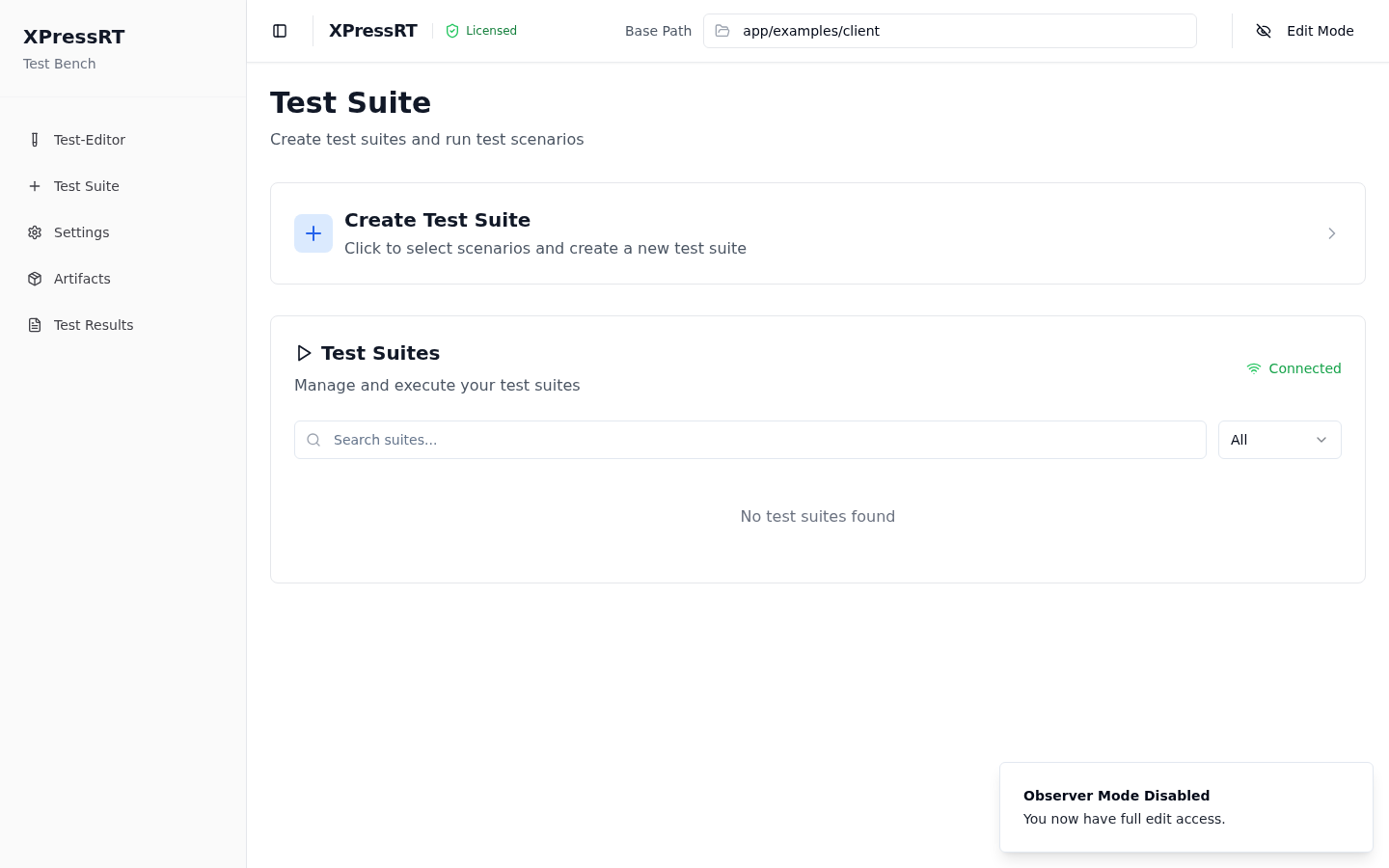
Click Test Suite in the left sidebar. The page is divided into two sections:
- Create Test Suite — an expandable panel for building a new suite
- Test Suites — the list of all existing suites, with search and filter controls
Creating a Test Suite
-
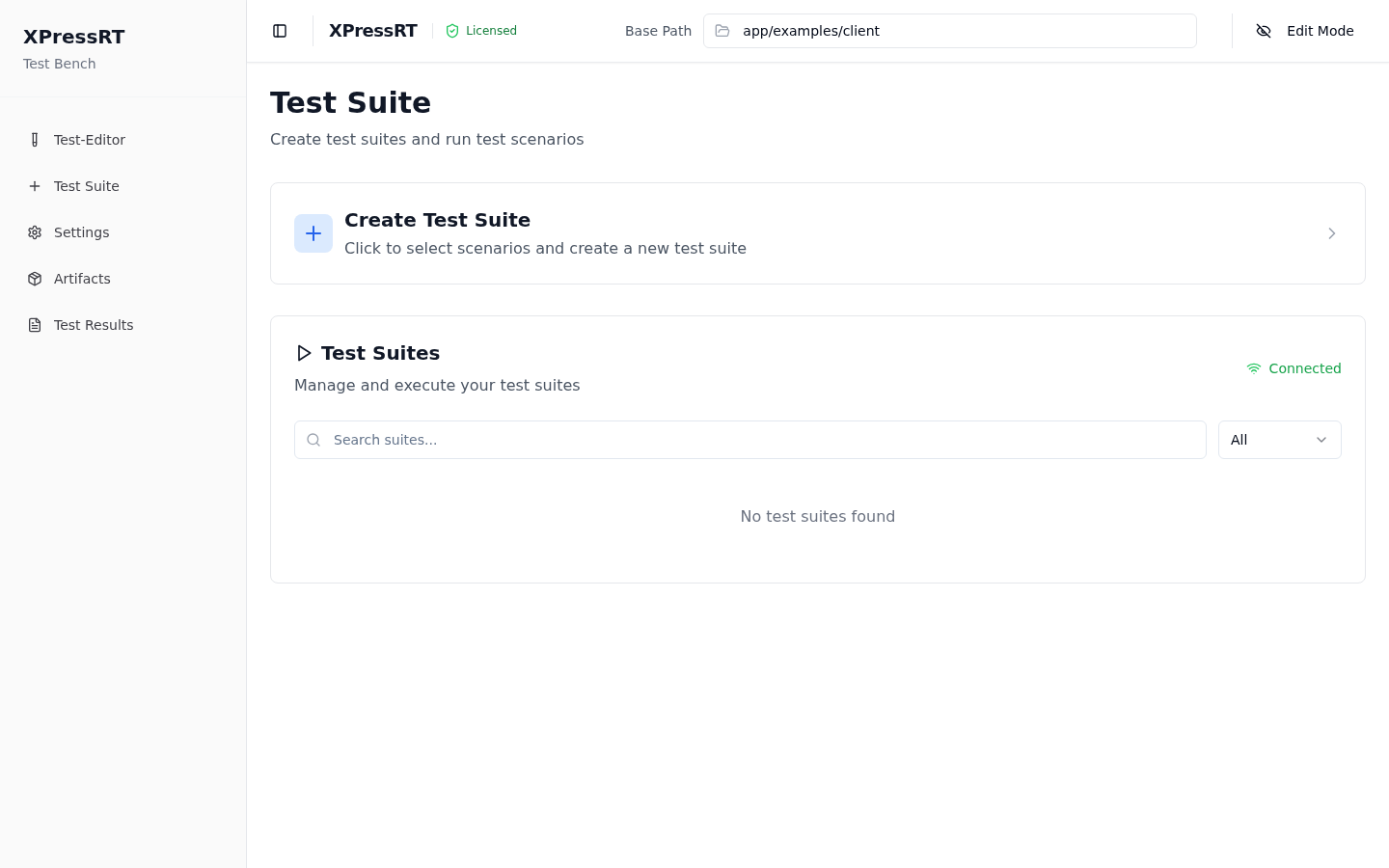
Click the Create Test Suite card at the top of the page to expand it.
-
The panel shows a list of all available features. Click the › chevron next to a feature to expand its scenario list.
-
Tick the checkbox next to each scenario you want to include. To quickly select all scenarios in a feature, tick the feature-level checkbox.
- Select All — selects every scenario across all features
- Deselect All — clears all selections
- The counter shows
X of Y scenarios selectedin real time
-
Scroll down and fill in the suite metadata:
Field Description Name A unique name for the suite (becomes the suite tag, e.g. @My_Suite)Description Optional free-text description of the suite's purpose -
Click Create Suite.
The suite is saved and appears immediately in the Test Suites list below.
Managing Existing Suites
Search and Filter
Use the Search suites… input to filter suites by name. The status dropdown filters by last-run outcome:
| Filter value | Shows |
|---|---|
| All | Every suite regardless of status |
| Passed | Suites whose last run passed completely |
| Failed | Suites with one or more failures |
| Warning | Suites with skipped or partially-run scenarios |
| Idle | Suites that have never been run |
Suite Card
Each suite is displayed as a card with:
- Suite name and description
- Total scenario count
- Last run date and duration
- Pass rate (percentage of scenarios that passed last time)
- Status badge (Passed / Failed / Warning / Idle / Running)
Actions Available on a Suite Card
| Button | Description |
|---|---|
| ▶ Run | Executes the suite immediately. A live progress view replaces the card during execution. |
| ✏ Edit | Opens the scenario selection panel pre-populated with the current suite contents |
| ↺ Reset | Clears the last-run status so the suite shows as Idle |
| 🗑 Delete | Permanently removes the suite |
Running a Suite
Click ▶ Run on any suite card. XPressRT:
- Connects to the XPress server (connection status shown as Connected / Disconnected in green/red)
- Executes each scenario in the suite in sequence
- Updates the card in real time — each scenario's status changes from Pending → Running → Passed / Failed / Skipped
Live Execution Panel
During a run the suite card expands to show a live view:
- Each scenario is listed with its current status icon and duration
- For Scenario Outlines, each parameter iteration is shown as a separate row
- If a User Input step is reached, a prompt dialog appears automatically — the operator must respond before execution continues
Stopping a Run
Click the ■ Stop button that appears while a suite is running to abort execution. Steps already in progress are completed first; all remaining steps are marked as Skipped.
Suite Tags
Internally, XPressRT assigns each suite a Behave tag (e.g. @Smoke_Suite). This tag is injected into the matching scenarios' feature files so Behave can discover and run exactly those scenarios. The tag is shown in the suite details as Suite Tag.
Note
Editing a suite's scenario selection updates which scenarios carry the suite tag in the feature files on disk.
Connection Status
The Test Suites panel header shows a live WebSocket connection indicator:
- 🟢 Connected — the browser is connected to the XPress execution server and can run suites
- 🔴 Disconnected — the server is not reachable; running a suite will fail immediately
If you see Disconnected, verify that the Docker containers are running (docker compose ps) and refresh the page.