Getting started
By the end of this page you will have run a complete procedure and read what it wrote. You need no instruments and no test hardware: the example asks you for the values a bench would otherwise supply.
1. Open the application
Open the address of your XPressRT installation in a browser. The application loads into the page — there is nothing to install and no account to create.
The first time you open it, XPressRT sets up a workspace for you and fills it with three examples. A workspace is where your procedures and your results live; see Your workspace for how to keep it in a folder of your own.
2. Open the example
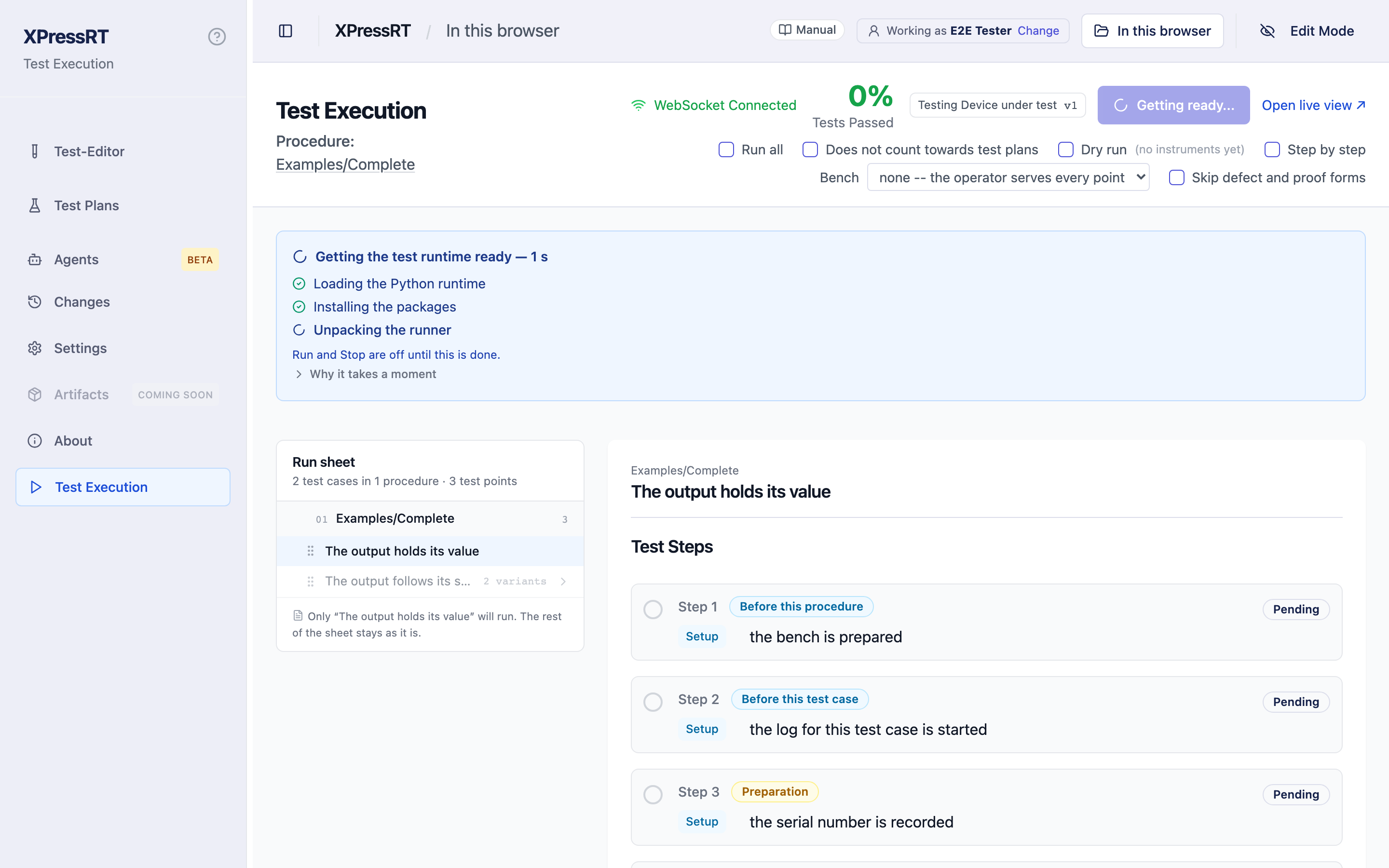
The tree on the left of the editor lists the procedures in your workspace. Open Examples › Complete. It is the example that shows a whole run rather than a single step: a serial number, a question to the operator, a value that gets set, a value that gets read, and the steps that run around the test cases.
You will see the procedure's test cases and, for the one selected, its steps in order.
3. Run it
Press Run Test.
Run all, or just the one
Opening a procedure preselects one of its test cases, and Run Test runs that one. To work down the whole procedure, tick Run all next to the button first.
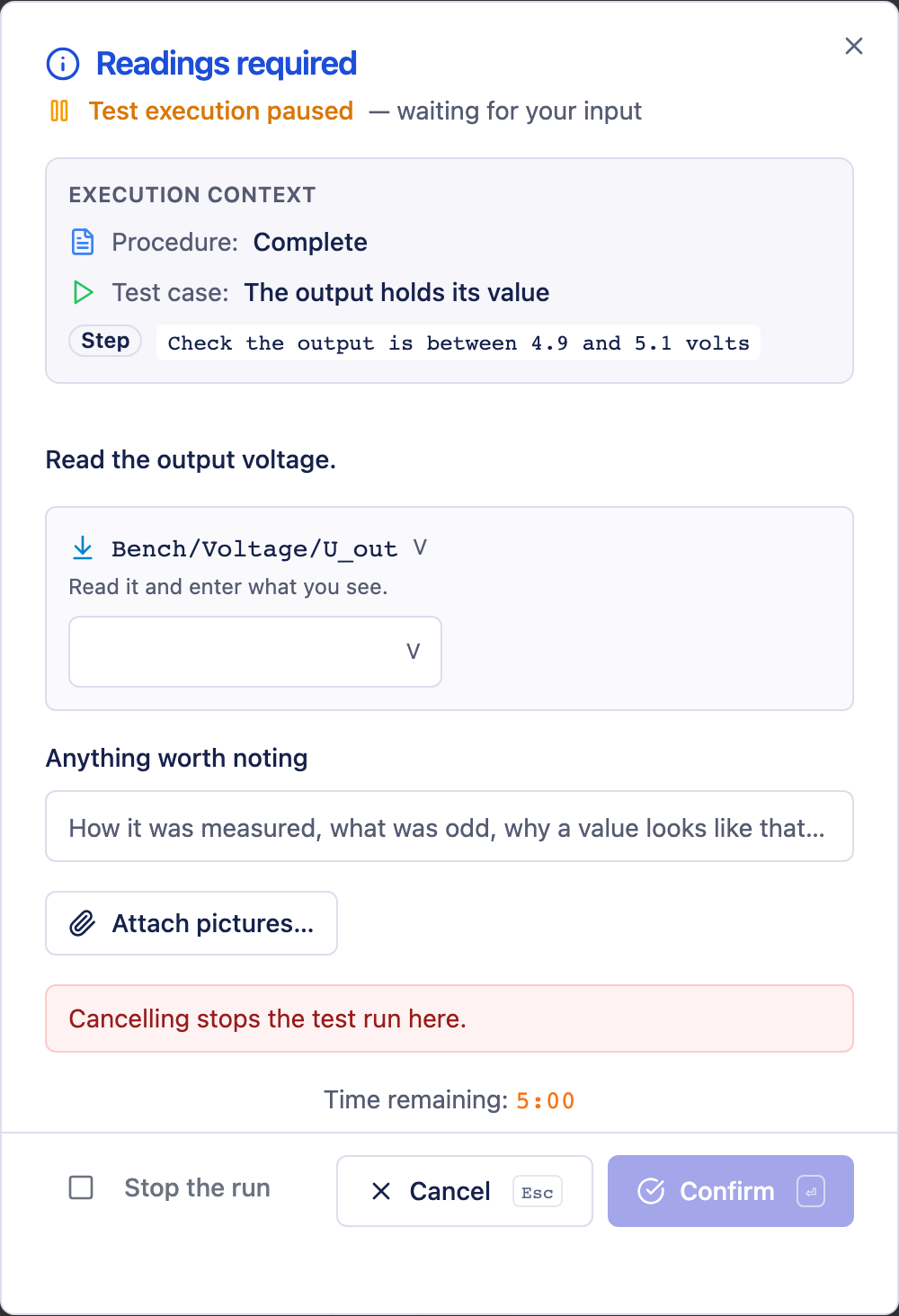
The run stops at every step that needs a person and asks:
| It asks | What to do |
|---|---|
| Switch the bench on and confirm when it is ready | Confirm. This is the preparation that runs once, before any test case. |
| Please enter the serial number | Type anything, e.g. SN-4711, and confirm. |
| Switch the supply on and confirm | Confirm. |
| Read the output voltage | Type 5.0 and confirm — the step compares it against 4.9 … 5.1. |
| Does the unit look and smell normal? | Yes. |
Watch the step list while you answer: each step turns green as it passes, and the view follows the run from test case to test case.
4. Read the record
When the run has finished, open Test Plans › Runs. The newest run is at the top.
- Run summary — how the run went as a whole, with the device under test, the tester and the serial numbers it collected.
- Test results — every test case with its steps, filterable down to the failures.
- Run Report — the report itself: each step with its outcome, the readings under the step that took them, and everything the operator wrote.
Open the report and look at one of the reading steps. Under it sits a fold-out
line — Bench/Voltage/U_out 5 V — within limits. That is the record you would
otherwise have written by hand.
5. Make it fail on purpose
Run the procedure again and answer 3.0 when it asks you to read the output
voltage. The step fails, because 3.0 is outside 4.9 … 5.1, and XPressRT asks
you to describe what went wrong. Fill in a line and submit it.
In the report, the failed step is red, the reading says outside limits, and
your description hangs under the step where it happened — not in a list at the
end of the page. That is the difference between a test that ran and a test you
can show somebody six months later.
Where to go next
- Procedures and test cases — writing your own
- Steps — what a step can do, and how to add one without writing code
- Running a test — the operator's side in detail
- Reports and records — what a run writes, and where