Procedures and test cases
A procedure is one test document. It holds test cases, and a test case holds steps in the order they are carried out.
That is the whole structure. Everything else on this page is a way of saying something about those three.
Creating a procedure
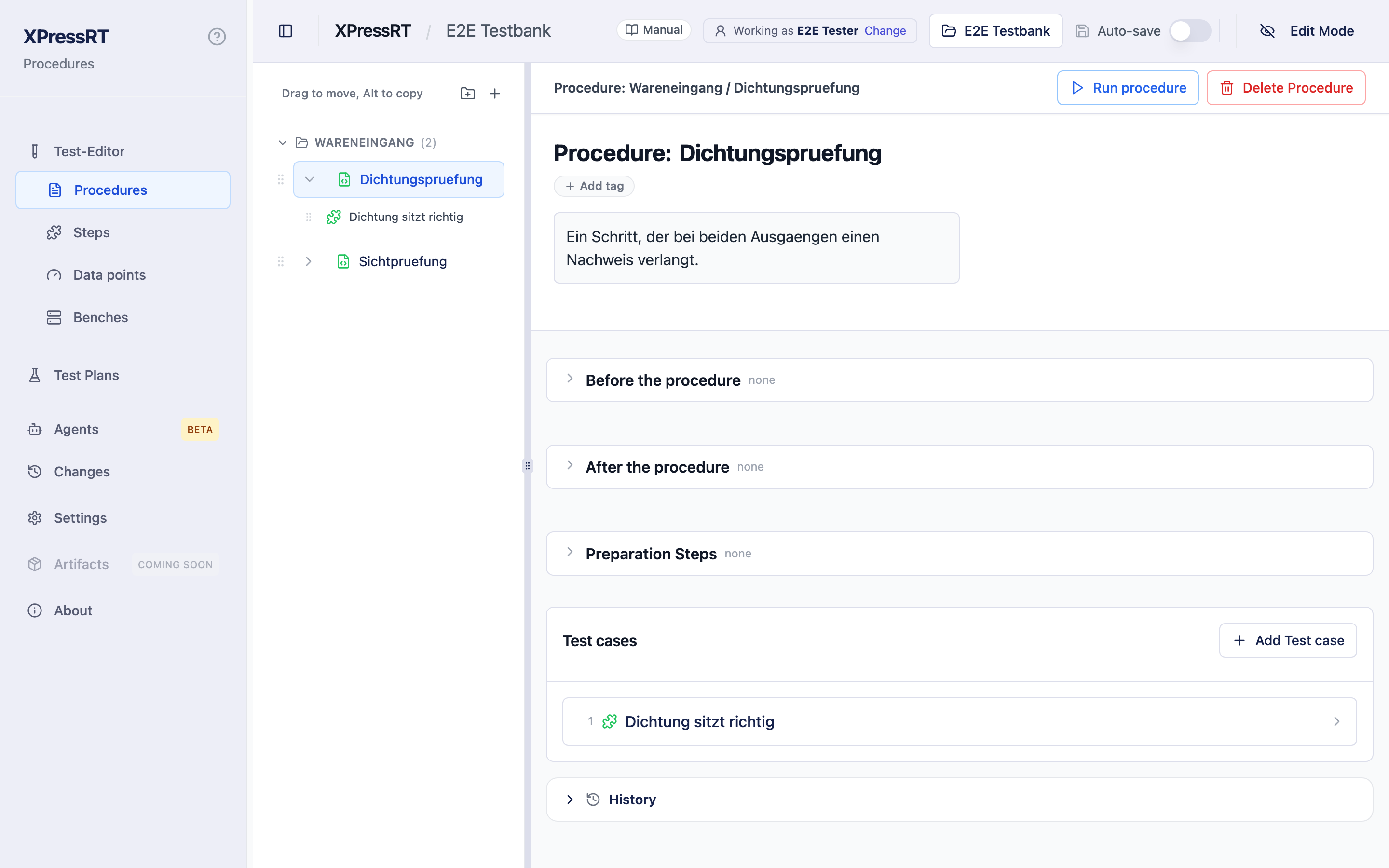
Test-Editor in the sidebar has two pages: Procedures and Steps. On both, the tree stands on the left of the page and the editor on the right, as on Data points: drag the divider between them to make the tree wider — each page keeps its own width, also after reloading. Under Procedures, Add Procedure creates one and you give it a name. Click the name of a procedure or a test case at the top of the editor to rename it. Procedures can live in groups, so a bench area or a product family keeps its own part of the tree. When there is no procedure left, the editor says No procedures in this workspace and offers Add a procedure; a procedure you delete does not stay open in the editor.
Inside a procedure, Add test case creates a test case. To change their order, drag a test case by its grip in the procedure; they run in that order. Give it a name that says what it establishes, in your own words. The output holds its value is a good name. Test 3 is not: it will be read by somebody looking for a result six months from now.
Steps
A step is one line, and it is one of three kinds:
| Kind | What it says |
|---|---|
| Setup | something is set up or brought about |
| Action | something happens |
| Check | something must be true |
The three are equal in what they can do. Any step can fail, and a failed step fails its test case whichever of the three it is — if the unit could not be powered up, the test case is red, not "not really failed because it happened during setup".
Two more words appear in a test case: And and But. They continue the line above and take its kind — And the output is stable under a Check is a Check. That is all they are. A step itself is never an And or a But: saving a step under one of them is refused, and a step you open in the step window from an And line keeps the kind it was defined with.
What the words are for is reading. A procedure written as Setup → Action → Check reads as a procedure; the same steps with no such order read as a list. Choose the word that makes the sentence true, and the report tells its own story to whoever opens it in a year.
What a step actually does — ask the operator, read a value, set a value — is decided when the step is created. See Steps.
Preparation shared by every test case
A procedure can have a preparation that runs before every test case in it: the section Preparation Steps on the procedure page. It is the place for what belongs to the unit rather than to one check: reading its serial number, powering it up.
Its steps appear in the report with the test case they ran for, so a reader sees the state the check was made in.
Test cases with variants
When the same check has to run at several operating points, do not copy the test case. Give it a variants table instead: one row per set of values.
The step text refers to a column by its name in angle brackets — the supply
is set to <u_set> volts — and each row fills it in. One test case, written
once, tested at 3.3 V and at 5.0 V:
| u_set | u_min | u_max |
|---|---|---|
| 3.3 | 3.2 | 3.4 |
| 5.0 | 4.9 | 5.1 |
Each row runs on its own, has its own outcome and appears in the report under its own name. In the interface a row is called an iteration.
A test case that is given a variants table is a test case with variants, and it is saved as one. It also cannot be without its table: the last column and the last row cannot be removed, because a test case with variants and no rows runs nothing and would pass.
A column no step uses is reported — a value that is filled in for every row
and never applied looks like part of the test and is not. If the column is
there for whoever reads the table, start its name with #: #Objective is a
note, and nothing expects a step to use it.
| #Objective | u_set | u_min | u_max |
|---|---|---|---|
| nominal supply | 5.0 | 4.9 | 5.1 |
| lower limit | 3.3 | 3.2 | 3.4 |
Before and after: preparation and clean-up
Five places hold steps around your test cases. The three of the procedure are on the procedure page; the two of a test case are in the test case.
| Place | Runs |
|---|---|
| Before the procedure | once, before any test case — set the bench up |
| Before this test case | once per test case, before its preparation |
| Preparation Steps | before every test case in the procedure (see above) |
| After this test case | once per test case, whatever happened |
| After the procedure | once, at the end — put the bench back |
They are steps like any other: they can ask the operator, they can fail, they appear in the report with their outcome, and a defect filed from one of them hangs at that step.
The steps in these places are written with their values in. A <column> or a
{placeholder} has nothing to fill it there: they run outside the variants
table, so a row's values do not reach them.
Rules worth knowing:
- A test case with variants gets them per row. Each row is a test case in its own right, so each row is prepared and cleaned up. Otherwise the second row would start on whatever the first one left behind.
- If a step in Before the procedure or Before this test case fails, the run has failed. The test cases behind it do not run — they are skipped, not passed and not failed, because nothing was tested. But the run is not Completed: the run list shows it as Needs investigation, its results name the place, the step and the reason, and in the summary a procedure whose preparation failed counts as failed. A bench that could not be set up is a failure, even though no test case got to fail. The clean-up still runs: a bench that was set up has to be put back.
- A step in Preparation Steps that fails is a failed step of the test case it ran for, like any other.
An assistant sets these places with the tool set_preparation; see
Working with an assistant.
When a procedure file is broken
A procedure is a file, and a file can be damaged — edited by hand, merged badly, left half-written. When it is no longer valid Gherkin, XPressRT says which file it is and the line where reading stops, together with what stands there, instead of a message about something else.
You are not stuck with it. The broken test case can still be deleted without the file being readable first, and the healthy test cases in the same file stay. After that the procedure reads again.
Tags
A tag is a label. Test cases and procedures carry them, and so do steps and plans. XPressRT uses them for two different things:
- Suites. A suite is defined by its tag: every test case carrying
@Sichtis in the suite Sicht. See Plans and suites. - Your own grouping.
@accepted,@draft,requirement:1234— anything you want to filter or trace by.
Where they are set and read:
- On procedures and test cases you add and remove tags in the editor. The coloured dot on a tag changes its colour, and the colour belongs to the tag: it changes everywhere the tag appears.
- On a step, the step window has a Tags field. It is saved the moment
you add or remove a tag, not with the step, and the tags are kept beside the
step code in
step-tags.json— so they survive a step changing from Python to blocks and back. The Steps page shows them. - On a plan, the plan dialog has a Tags field. They are shown on the plan, in its progress view and in its report.
- Filter by tag at the top of the procedure list narrows the tree to the procedures that carry a chosen tag, or have a test case that does. Suite tags are in the list too.
Tags on steps and plans are for people: no run, selection or result reads them.
One tag is set by XPressRT itself: ai-generated. A procedure, test case, step or plan an assistant creates or changes carries it afterwards. It means an assistant wrote this and nobody has read it back yet. Removing the tag is the review; if an assistant changes the thing again, the tag comes back. See Working with an assistant.