Python steps
Most steps are filled in through the step window: ask the operator, read a data point, wait. A Python step is the one you write yourself. It stays an ordinary step — it has a sentence, a test case uses it like any other, and it passes or fails like any other — but what it does is code.
Python you write by hand runs on your machine, not in the browser. That is why it asks something of you that no other step does: a small program, the local step runner, has to be running while the procedure runs. This page says what to install, how to start it, and what to expect.
Steps written as blocks do not need it: they run in the browser. See Blocks.
What Python steps are for
For everything the step window cannot express. Typical cases:
- Evaluations that need arithmetic. Power from voltage and current,
efficiency, ripple, the spread of a series of readings, a curve fitted to
measured points — and a verdict on the result rather than on a raw reading.
result()puts the number in the report, judged against the limits you give. - Working on data. Reading a CSV or a waveform a measurement left behind,
cutting it down to what matters, and hanging the evidence on the step: a
plot, a table, a log file.
attach()puts it in the report under the step that produced it. - Logic. Loops, retries, waiting until a condition holds, deciding from what
an earlier step found —
ctx.storepasses a value on to a later step. - Reaching things on the bench machine. A serial port, a VISA instrument, a vendor library, a test rig's own interface. The code runs on your computer, not in the browser, so anything Python can reach there, your step can reach. The runner itself needs nothing installed; your own code may use any package you install.
Where a form step will do, use the form step. Ask the operator, read or set data points against limits, wait, record a serial number: those need no code, anyone can read them in the step window, and they run without a runner on the bench. The same goes for a step written as blocks: it can calculate, loop and attach evidence, and still runs without a runner. A hand-written Python step is code somebody has to keep working — worth it when it does something the others cannot, not as a second way to do what they do.
And even in Python, read and set quantities through data points
(read(P.Bench.Voltage.U_out)) rather than addressing an instrument directly
where you can. The step then keeps working when the value comes from a
different instrument, or from the operator typing it in.
What you need
- The workspace as a folder on your computer. A Python step runs next to its code, and a workspace kept inside the browser has no folder anywhere. In such a workspace a hand-written Python step can be written, but not run — it fails and says so. A step written as blocks runs there.
- Python 3.9 or newer. Nothing else: the runner uses the standard library only, so there is nothing to install with pip, and no version of anything that can drift out of step with the application.
- An editor. Any will do. VS Code is the one that is set up for you: the workspace carries a launch configuration, so starting and debugging is one key.
Creating a Python step
- Open the step window as for any step and write the sentence — the power stays below {limit} watt.
- Under Action, choose Python.
- Press Create it locally. XPressRT writes an empty function for this
sentence into
local/steps/in your workspace. You do not have to save the step first. - Press Open in editor and fill in the body.
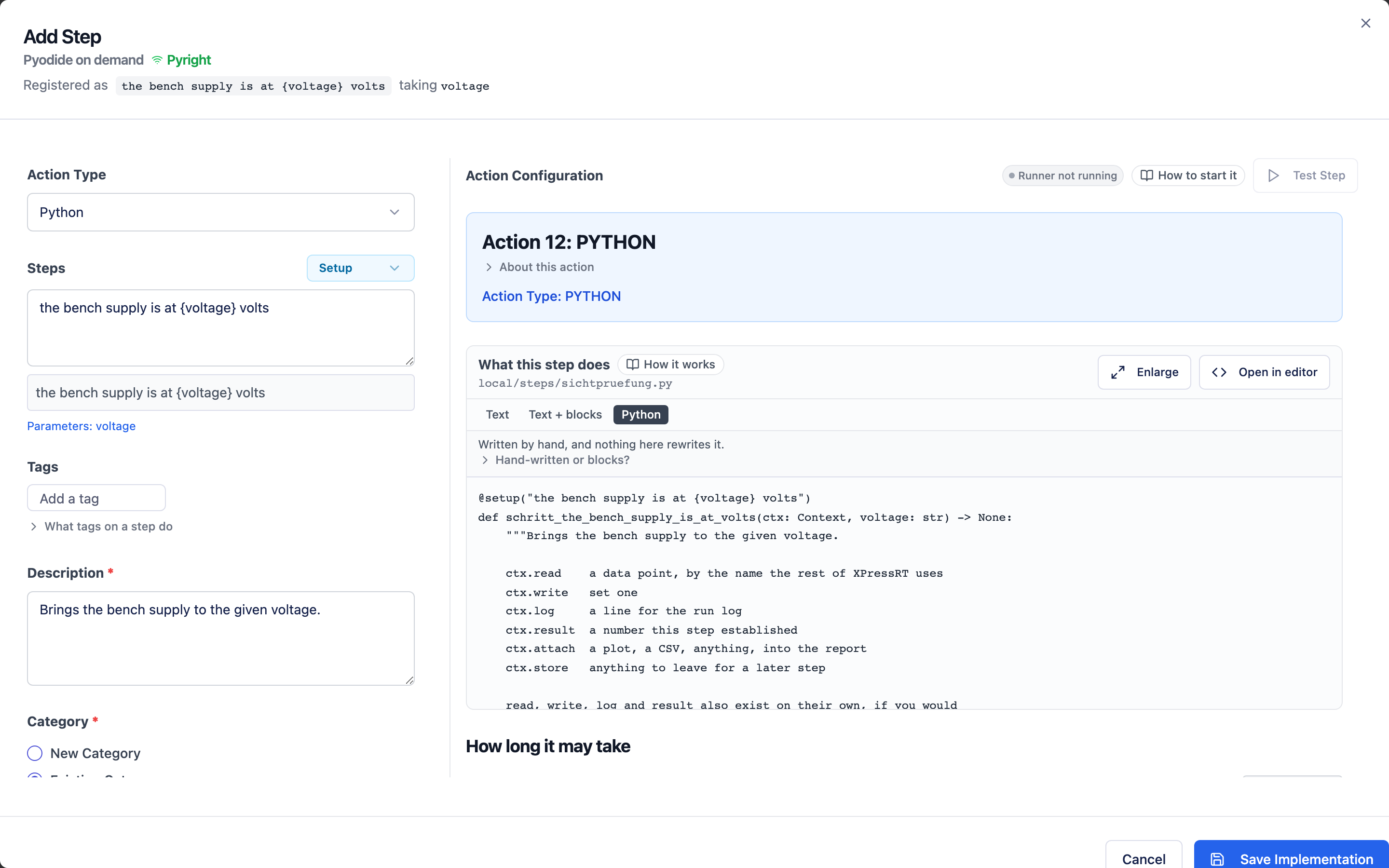
The file that appears looks like this, and everything below the first line of the function is yours:
@check("the power stays below {limit} watt")
def schritt_the_power_stays_below_watt(ctx: Context, limit: str) -> None:
    ...
XPressRT creates that function once and never touches the body again. Change
the step's settings, save it a second time, switch its action back and forth —
your code stays as it is. The only lines XPressRT keeps up to date are above
the body: when you rename the step or change its kind, the decorator follows,
and a new {value} in the sentence joins the function as a parameter. The step
window says so before you save. A parameter the sentence no longer has is left
in place.
Leave the decorator line alone
The sentence in @check("…") must match the step exactly, braces and all.
Change it in the file and the step is no longer found: the run reports it
as unknown, and the rest of that test case is skipped. To reword a step,
rename it in XPressRT — the rename lists the Python body among the places
it changes, and carries the decorator along.
Starting the runner
The runner is a small program that sits in your workspace under local/. It
has to be running while a procedure with hand-written Python steps runs. Start
it in one of two ways:
- In VS Code: open the workspace folder and press F5.
-
From a terminal, in the workspace folder:
python local/main.py
Within a few seconds XPressRT notices it. The header shows a green Runner badge, and in the step window of a Python step Runner not running next to Test Step turns into Runner connected. Started under the debugger, both turn amber and read Runner · debugging.
Without a runner, Test Step is disabled for hand-written Python steps, and
such a step in a run fails with a message that says the runner is not running.
It does not hang, and it does not pass. If the runner was killed rather than
stopped, it can leave .xpress/runner.json behind; the step then fails with a
message that the runner did not answer.
A step written as blocks is the exception. Its step window shows no runner
badge unless a runner is connected, Test Step works without one, and the
step runs in the browser — also when a runner.json is left behind but nothing
answers. See Trying and running a block step.
You do not have to restart the runner after editing a step: it reloads changed files before every call. You do have to restart it when XPressRT itself was updated — the first step that meets an old runner says so.
Writing the body
The values in the sentence's braces arrive as parameters, by name. The step's
context, ctx, is optional: take it as the first parameter when you need it.
| Call | What it does |
|---|---|
read(path, picture="") |
the value of a data point. With no instrument attached, the operator is asked — the same dialog as a Read data points step. |
write(path, value) |
sets a data point. Always allowed; without an instrument nothing physically happens, and nobody is asked. |
log(text) |
a line in the run log. |
result(name, value, unit, min, max) |
a number this step established, for the report — judged when you give limits. |
attach(data, mime, caption) |
a plot, a table, anything, hung on this step in the report. |
attach_file(path) |
the same, straight from a file the step wrote. |
attach_chart(values, caption, unit, low, high) |
a course over time as a chart in the report. |
report_defect(...), attach_proof(...) |
a defect or a proof report written by the step, with the fields of the operator's form. |
show(instruction, picture="") |
shows the operator an instruction and waits for it to be confirmed. |
confirm(question, picture="") |
a yes/no question; no fails the step. ask_yes_no(question, picture="") only returns the answer. |
ask_text(question, default="", picture="") |
asks for a text: a serial number, a batch, a note. |
remember(name, value), recall(name) |
keeps a value for a later step of the same test case, and takes it back. |
last(path) |
the newest value recorded for a data point in this test case. |
clear(path), clear_all() |
starts a new window for one data point, or for all of them. |
collect(path, seconds) |
everything that arrives for a data point in that time, with stamps. |
wait_until(path, comparison, value, seconds) |
waits until a data point gets there, and returns how long it took in ms. |
time_of, time_since, window, duration |
time inside a course of stamped values, in ms. |
ctx.series |
what has passed through each data point in this test case: value, unit, stamp and where it came from. |
A point that holds a record gives a
dictionary with its fields — read("ErrorService/Received")["code"] — and
"Point:field" reads one field directly, up to three deep:
last("ErrorService/Received:detail:severity"). read, last, collect,
recorded and wait_until take such a path; the run records the whole record
under the point. write sets a record as a whole, with a dictionary. A
request with record fields is called with them, request("Bus/SendDetail",
{"severity": "high"}). To compare, record_matches(value, {"code": 4711})
holds a record against the fields you name and record_difference says which
one differs; list_contains(values, value) looks into a list. A record has no
size: float() on one, a mean or a chart fails with a sentence, not with a
conversion error. Renaming a field in the catalogue does not rewrite Python
you wrote — it lists the lines for you.
picture is a file in local/assets, such as "local/assets/seal.png",
shown to the operator in the dialog. Pictures the operator
attaches to an answer are hung on the step in the report.
Each call is a function in xpress_local. The file XPressRT creates imports
read, write, log, result, attach and attach_file; add the others to
that import line when you use them.
Data point names in your editor
A data point is content, not code, so on its own no editor would know the names
— and a name one letter wrong only fails at the bench. XPressRT therefore writes
them as Python, into local/steps/xpress_points.py, and your editor completes
them:
from xpress_points import P

voltage = read(P.Bench.Voltage.U_out)
- Nested the way the data points are. Each folder is a level, so the editor
offers them one level at a time:
P.showsBench,P.Bench.showsVoltage, and so on. Each name stands for the full path —P.Bench.Voltage.U_outis the text"Bench/Voltage/U_out". - A folder that is also a data point carries
_:P.Motor._is"Motor", andP.Motor.Speedis"Motor/Speed". - Characters Python does not allow in a name become
_, and a name that starts with a digit gets annin front:U outisU_out,3V3isn3V3. The path it stands for is unchanged. ALLis every path, flat, for a step that wants to go through them.
The file is rewritten when the workspace is opened and whenever the data points change in XPressRT — create, rename or delete one, and your editor knows it straight away. Do not edit it: it would be replaced, and a completion list offering a name that no longer exists is worse than none.
It works without any setup in VS Code and every editor built on the same Python
analysis. Writing the path as text — read("Bench/Voltage/U_out") — works just
as well; you only lose the completion and the early warning about a typo.
A failed assert is a failed step, and its message is what the report shows.
Put the value and the limit in it — a failure that only says assertion failed
sends somebody to the bench with nothing.
The complete reference is local/README.md in your workspace, with every call
both on ctx and on its own. It is replaced with every update, so it always
describes the runner you actually have.
Which editor opens
Open in editor asks the runner to open the file, and the runner looks for
an editor it knows: code, codium, cursor, windsurf, subl or nvim on
the path, and on macOS the applications themselves. If the wrong program opens,
none was found. Either install the shell command from within your editor — in
VS Code, Shell Command: Install 'code' command in PATH — or name the editor
in the environment and restart the runner:
export XPRESS_EDITOR="code -g {file}:{line}"
{file} and {line} are filled in. local/README.md has the details,
including how to set it for one workspace only.
Debugging
Set a breakpoint, start the runner with F5, and run the procedure from XPressRT as usual. The run stops at your breakpoint with the real values; step through, then let it carry on. Under the debugger the step's time limit does not apply, so a stopped run waits for you rather than failing.
What ends up in the report
Under a Python step, the report shows:
- Results — every
result()the step called, in the order it called them, with limits and outcome where you gave limits. - Asked of the operator — every value typed for a
read(). Your code judged those numbers; the report keeps the numbers it judged. The record says who typed them:operatorfor a person,assistantfor an assistant answering in a dry run (sourceinmeasurements.json,origininseries.json), so a dry run is never mistaken for a reading. - Attachments — whatever the step attached.
What a step sets with write() does not go in the report. Without an
instrument nothing was set, and a line claiming otherwise would be a statement
about the unit that is not true.
Settings of a Python step
A Python step has If it fails, and the error code and message the report
shows then — see Settings every step has.
It does not have the options to ask for a defect or a proof report; a step that
wants one files it with report_defect() or attach_proof().
And it has one setting of its own: Timeout (seconds), how long the body may work before the run fails the step. Time at an operator dialog does not count; each dialog waits up to five minutes for an answer. That holds in the browser too, for a step written as blocks. See Time limits.
Letting an assistant write the code
An assistant with access to the workspace folder may write under local/:
helper modules, data and images your steps need. A step body it writes as
blocks, not as Python — so that the person who approves the step
can read it.
Several files under local/ are XPressRT's and not an assistant's to change:
xpress_local.py, README.md, xpress_mcp.py, blocks/README.md,
blocks/approvals.json, steps/xpress_points.py, and every file in
local/steps/ generated from blocks. The workspace says all of this itself, in
AGENTS.md at its root. See Working with an assistant.