Running a test
You can start a single test case, a whole procedure or a suite. All of them open the same view: the run sheet on the left, the steps of the test case on the right.
Starting
The first run of a session takes longer: the test runtime loads into the browser, with Python and the packages a run needs. What is happening stands on the page — downloading, unpacking, installing, ready — with a progress bar, and Run Test and Stop are greyed out until it is there. It is worth waiting for; the next run starts at once. If it fails — a broken connection is the usual reason — the page says so and offers another attempt.
| Start from | Runs |
|---|---|
| A test case in the editor | that one test case |
| A procedure | the test case selected on the left — or all of them, with Run all ticked |
| A suite | every test case in the suite — or only the one you picked on the left, unless Run all is ticked |
| A plan | nothing yet: see below |
A plan cannot be run as a whole yet. The view opens on it and shows the sheet it would run, but Run Test stays disabled and says why: a plan is run by starting the suites and test cases it covers.
While the run goes on, the view follows it: the test case on screen is the one being worked on, and each step turns green, red or grey as its result arrives. A test case with variants shows one section per row.
Leaving the view ends the run
The run happens inside this page. Navigating away ends it — which is what you want: a run nobody is watching can no longer be answered, and it would otherwise hold on to what it touched. It ends the way Stop does: what got through is written as a report. Reloading the page or closing the tab is something else — the report is written at the end of a run, and a reload takes the page away before that.
A test case that names a value that does not exist
A test case gives a step its values in its sentence or in its variants table. Where such a value goes to a point with named states, to a switch, to a parameter of a request or to a field of a record, XPressRT knows before the run whether the value exists there. ajar for a door that is open or closed, perhaps for a switch, a name that was renamed in the catalogue: there is nothing the unit could do right or wrong with it.
Such a test case is not run. Nobody is asked anything for it, its preparation and clean-up steps do not run, and nothing of it reaches the bench. With a variants table it is the one row; the other rows run. Everything else in the procedure, suite or plan runs as usual. The run then says, for each of them, what stands there, what exists, and that the mistake is in the test case:
Variants row 2, column
, gives “ajar” to Bench/Door, which holds open, closed. It was not run: the mistake is in the test case, not in the unit under test. Correct the test case and run it again.
It counts as not run — not passed, not failed, and no defect report is
asked for. The run list, the run's summary and an assistant's explain_run
show the sentence; see Reports and records.
In a plan the test point reads Not run.
Before the run, Check the procedure (and an assistant's check_procedure)
names the same places with the line in the file. The editor does not let you
save such a cell in the first place; it gets into a test case when a file is
edited outside XPressRT, or when a state or a value is removed from the
catalogue afterwards.
Where the line is: before the start, only what stands in the sentence or
in the variants table of the test case is checked. A value that only comes
about in the run — one a step computes or reads, one that is put together from
pieces (severity me<rest>), one in hand-written Python — fails at the step,
as before, and the step's message says that the value came from the test case.
A number that is not a number, or a text that does not fit, still keeps the whole run from starting — The run was not started, with row and column.
What the operator sees
When a step needs a person, the run pauses and a dialog appears. It always says which procedure, which test case and which step it belongs to, so that somebody who steps in halfway knows what they are answering. That holds for block and Python steps too — a reading, an instruction or a question asked from inside their code names the step it came from, with the values of the variants row filled in — and for the defect and proof forms.
A step can show a picture in the dialog: what a good seal looks like, where the probe goes. A dialog taller than the window scrolls.
Depending on the step it asks for:
- a confirmation — one button
- yes or no — two, and which of them is the good answer depends on the step's question
- a typed answer — a serial number, a text
- one or more readings — a field per data point, labelled with its path and unit
- a record — one input per field of its type, each checked while you type: a choice where the field has names, the unit where it holds a number. A field with a default may stay empty. A list has a row per entry, up to as many as it may hold
- what a point received over time — a table with a row per occurrence, the fields as columns, and the moment each arrived in milliseconds — first in the row. For a point that reports events an empty table is an answer: nothing was received, and the dialog says so. The dialog grows with the number of fields, up to the width of the window
Every dialog also has a message field. Anything written there is kept with the step, in the report, whatever the answer was — that is the place for "power supply took three tries to come up".
Attach pictures… puts photographs beside the answer — the seal as it sits,
the display as it read. They are the evidence for "yes", and they land in the
report under the step: with a form step in the operator's note, enlarged on a
click, and as files in the run's attachments folder; with a block or Python
step as an attachment of that step. The button is there for confirmations,
yes/no questions, typed answers and readings — not in step-by-step mode, for
the serial number or for a course over time. A file over 5 MB keeps only its
name.
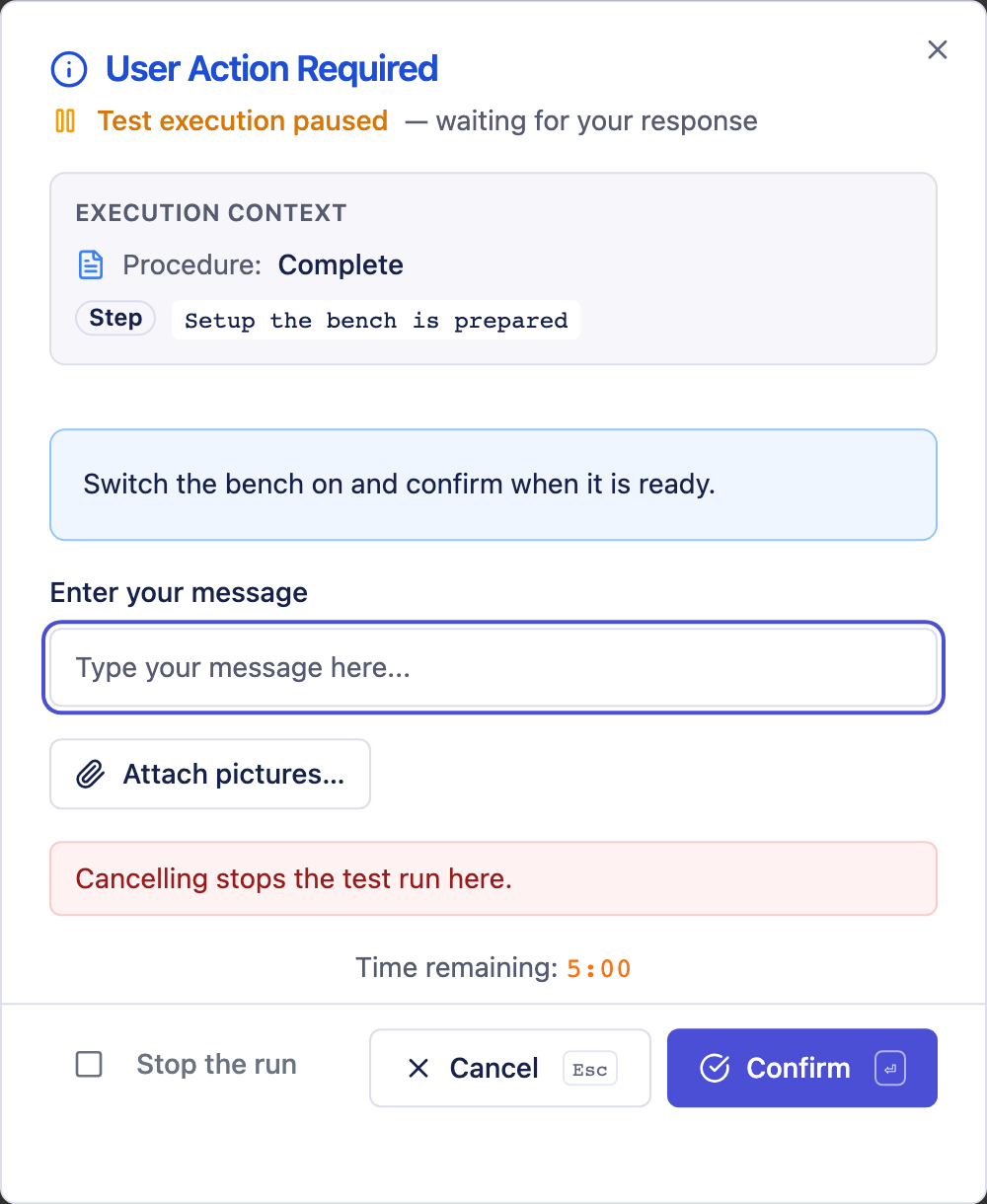
The keyboard
The dialog answers without the mouse:
| Key | Does |
|---|---|
| Enter | the confirming button — Confirm, Yes, Continue |
| Escape | the other one — No where the question has a No, otherwise Cancel |
Both are written on the buttons themselves. In the defect and proof forms the keyboard stays out of the way: those have multi-line fields, and Enter belongs in the text.
Cancel, No, and Stop the run
Three different things, and confusing them is how a broken unit comes back green:
- Cancel means the step failed. Nobody answered the question, and a question nobody answered is not a yes. What happens next is the step's If it fails setting: stop this test case, or carry on with the next step.
- No is an answer. Whether it fails the step depends on what the step asked — a step that asks "is the housing undamaged?" fails on No; a step that asks "does anything smell burnt?" would fail on Yes.
- Stop the run ends everything. It belongs to nobody's step and is not a result.
Stopping — with Stop the run in a dialog, or Stop beside Run Test — ends the run cleanly, also while a question is open. The step that was waiting fails with Run stopped by the operator, everything after it is not run, and the clean-up still runs, because a bench that was set up has to be put back. The run then writes its report as usual, with whatever got through: the steps that passed, the values typed so far, the notes. That report says the run was stopped by the operator, not that the unit failed.
Stopping is not instant, and the page says so: the run winds down. The rest is skipped, the clean-up runs, and the report is written — that takes a few seconds. Only if the run does not come to an end in half a minute — it is deep in a calculation and never asks anything again — is the runtime restarted, and then there is no report.
An assistant stops a run with stop_run, whoever started it: a run somebody
started here can be stopped from there and the other way round. It says which
one it stopped and that it is winding down.
Time limits
A block step and a Python step have a time limit: Timeout (seconds) in the step's settings, 60 seconds unless you change it. It counts the step's own work — an instrument that does not answer, a loop that does not end — and not the time a dialog is open. A step with five questions to the operator does not run out of time because somebody is thinking or taking a photograph. A step that runs out fails with The step did not finish within 60 s of its own work.
Each dialog of such a step waits up to five minutes for an answer. After that the question is withdrawn and the step fails with Nobody answered the question within 300 s — nothing is answered on the operator's behalf. Stop the run ends a run at any time.
Either way, values that were entered before are kept and appear in the record; the work somebody did at the bench is not lost.
If a step really works longer — a long series with pauses between readings, a slow instrument — raise its timeout. In the browser, a step can only be stopped by its timeout at a question; with the local runner, at any point.
Where block and Python steps run
A step built from blocks runs in the browser during a run: no local runner is needed. A hand-written Python step runs on your machine and needs the local runner — without it the step fails and says how to start the runner. If the runner is running, block steps run there as well. See Python steps.
Defect and proof reports
A step can ask the operator to write something down:
- a defect report when it fails — what went wrong, what was expected, what was seen, and pictures if you have them
- a proof report when it passes — what was observed, for the checks whose evidence is the observation itself
Both open as a form, both can be skipped, and both land in the report under the step they belong to — plus as a page of their own that the report links to.
Skipping the forms
Skip defect and proof forms turns off the questionnaires for this run. The steps still pass or fail exactly as they would have — only the form is not put up. Useful while you are still building a procedure and do not want to fill in a defect report on every attempt.
Trial runs
Does not count towards test plans runs everything exactly as usual and writes exactly the same record — it just cannot change what a plan reports. A dry run always is one (see Dry runs). Use it to try a procedure out, or to repeat a test case for a look without disturbing a release that is being tracked.
Step by step
Step by step stops the run before every step and asks: this step is next, that one was last — run it, or stop the run. Nothing else changes. It is not a kind of step and not a kind of run; it sits above the run, and a step that is released runs exactly as it always runs, with its own prompts and its own verdict.
It covers every step of the run, because it asks at the one place every step goes through: the procedure's preparation and clean-up, a test case's own preparation, every step of the case, and every row of a test case with variants. Whether the run was started on a procedure, a single test case, one row, or a whole suite makes no difference.
Two details worth knowing:
- Last step says no step yet at the start of a test case, because that is the truth — unless a preparation step ran immediately before, in which case it is named. A test case does not inherit the previous one's steps: each one begins for itself.
- Stop the run ends the run where it stands, and it says so in the report:
the step you stopped at is red with
E902: The operator stopped the run at
  this step
, and everything after it counts as not run rather than passed. It does not mean "skip this step" — a run that carries on past a step nobody ran would report about something other than what it says. Escape does the same as the button. Clean-up still runs: a bench that was set up has to be put back.
It has nothing to do with dry runs, with instruments, or with the prompts a step puts up itself — it can be used with any of them, or none. An assistant cannot use it: a run that waits at every step is a run somebody is watching.
On a bench
Choose a Bench beside the other options before you start. Before the run starts, XPressRT says how many data points run on it and how many do not. Open that line to see both lists: what the bench serves, with the driver for each, and what the operator serves — every data point it does not bind, and every row or driver that is disabled, with the reason. A dry run runs without a bench (see Dry runs). A bench that reports another name than its binding, or that needs attention, starts no run; neither does a real bench whose binding — or whose offering — changed since it was commissioned. The reason stands where you chose it. A simulated bench starts anyway and says binding v4 changed since commissioning (v3) before the start and at the top of the report.
During the run the bench serves what it binds: a form step asks only for the
points it does not, a block step reads and sets through it, and a request is
carried out by it — its answer is mapped through the binding, and refused is
a result like any other. A history the bench delivers (WAIT_UNTIL, COLLECT)
carries the same clock as a single reading from it — SIM-1/dut, the bench and
its driver. When it does not answer ok for a read or a set, or does not answer
a request, the step is aborted by the bench (see
Aborted by the bench).
A run on a simulated bench takes its values from the simulation: it is not evidence and counts towards no test plan, and its report says so at the top.
A run begins only when the workspace history is at rest: what was changed outside XPressRT before the run is recorded first, as what it is. So nothing a run writes can end up in the history as changed outside XPressRT — it is recorded as written by that run when it ends.
Watching a run
Open live view ↗, beside Run Test, opens a window of its own that shows what passes the data points while the run goes: values, requests, marks and where each step begins — on a bench or without one. It only displays; the run does not depend on it. See Live view.
Dry runs
Dry run leaves the instruments untouched: nothing is applied to the unit. Everything else is the same run — the same record, the same report, no special mark anywhere.
A dry run never counts towards a test plan. Ticking Dry run ticks Does not count towards test plans with it, and that box stays ticked until the dry run is unticked again — a dry run is a rehearsal, and a plan should not turn green on one. The same holds for a dry run an assistant starts.
A dry run also runs without a bench. While Dry run is ticked, Bench is greyed out and set to none; a bench you had chosen is dropped, and you choose it again once the dry run is unticked.
With no instruments connected it changes nothing at all, and the box says so. It is there because the seam is built and travels with every run; the day a bench is connected, this is the switch that says "rehearse, do not touch it".
A step that collects a course over time — a curve, or a wait for an edge — needs something pushing samples at it. With no bench connected, nothing does, so the run asks you for the course: a set of rows, each a value and how many milliseconds after the start it arrived. That happens in every run, not only in a dry one.
Why it asks rather than refuses: a step that only works in a dry run is a step nobody can put in a procedure. The price is that a run you keep as evidence can contain a course somebody stated. The record says so at every value — who supplied it (the operator, or the assistant when it answered the dialog) and whose clock stamped it — and the note field beside the form is where you write what it was: a datasheet figure, an earlier measurement, or a number you chose.
It is also the only way to test a deadline. A step that says "within 200 ms" can be given an edge at 180 ms, which must hold, and then the same course with the edge at 240 ms, which must fail. The stamps you enter are what the check is measured against — which tests the check, not the unit.
Two rules the form enforces, because they are the step's own:
- When collecting, the window is closed at the end. A sample later than the window is one the step would never have seen, and the form refuses it. To make a collecting step fail, keep the samples inside the window and let the values be wrong.
- When waiting, the span is a deadline, not a window. An edge after it is allowed — the step does not see it and fails, which is exactly the case you want to be able to check.
What a dry run does not tell you is anything about the unit. If you supplied the numbers, "it passed" means "it passed with the numbers I entered", and the record says so: every value carries who entered it and whose clock stamped it. A value the assistant typed is labelled assistant, not operator — it is not the same evidence.
The workspace stays as it is while a run goes
While a run is going, what it runs cannot be changed: steps, blocks, data points, procedures and test cases are refused with a sentence naming the run. Reading stays open, and so does everything that belongs to the run itself — answering, handing a question to the bench, stopping it.
The reason is the report. A run has to carry out what it says it does; if the ground moves under it, its record describes something that never happened that way. The same care has always been taken that only one run goes at a time.
A second run does not start either. While a run is going — also one that
has been waiting at a dialog for minutes — an assistant's start_dry_run is
refused with the same sentence, the time the run started as the clock at the
bench shows it, and the tool that stops a run:
A run is going in this workspace (features/Incoming goods/Visual check / Housing is undamaged, started 13:37). Nothing was started: a second run would end the first. Wait for it to finish, or stop it first with stop_run -- what it got through is recorded.
The same holds for Run Test and for starting a suite in the window. Before, a dry run started by an assistant took the run a person had started in the window away from them: its open question was withdrawn and it ended as stopped by the operator. A run that was stopped and is still winding down does not count — after Stop you can start again at once, as before.
An assistant gets the same refusal, as a 409 with the run named, so it can
tell you rather than guess.
Preparation and clean-up during a run
The steps that run before and after a procedure or a test case appear in the step list with a badge saying where they belong. They behave like any other step: they can ask, they can fail, and their result is shown where they sit.
Two things to expect:
- If the preparation of the procedure fails, no test case runs. They are reported as not run — not as failed, because they never happened — and the run itself counts as failed, naming the step and the reason. See Procedures for what each place does when it fails.
- The clean-up runs anyway. A bench that was set up has to be put back.
When the run has finished
The run is archived with everything it produced, and the view offers the report directly. While the report is still being written, Run Test shows Reporting… and Open report waits until it is there; that takes a moment after a long run. Everything is also in Test Plans › Runs; see Reports and records.